Confluence
The Confluence integration lets Q247 measure the effort put into documentation. Pages and comments are analyzed the same way as code and tickets, and their calorie score is added to the author's totals. Confluence also appears as a source type in the Sources list, identified by space key rather than the project key used in Jira.
This integration does not feed Flow Metrics. Those require Jira, because they are calculated from the ticket status history.
The data path to Q247
As with Jira, data about pages and comments reaches Q247 through one of two paths, depending on the selected ingestion method. In webhook mode, Confluence sends the events, and the location of their receiver depends on the deployment variant, described in the subsection below. In API mode, the plugin itself periodically polls the Confluence REST API. In both cases the content is analyzed locally, and the result goes to Q247.
In webhook mode the integration does not deliver current activity until the webhook works. The plugin then reacts to three events:
| Event | What it covers |
|---|---|
page_created | creating a page |
page_updated | updating a page |
comment_created | adding a comment |
Cloud and On-Premise
The split is the same as with Jira, and for the same reason. In webhook mode, the Cloud variant routes events to a receiver on the Q247 side, the On-Premise variant to the plugin at the address given in the form. In Q247 forms the variants are named "Confluence Cloud" and "Confluence On-Premise", and Atlassian calls them Confluence Cloud and Confluence Data Center.
Data available after activation
- The calorie score of pages and comments, added to the author's totals alongside code and tickets.
- A source of the Confluence type in the Sources list, assignable to a Q247 project by space key.
- Visibility of the contribution of people working on documentation, without commits in repositories. Without this integration their work does not appear in Q247 metrics.
Prerequisites
- A service account in Confluence with read permission on the spaces covered by the integration.
- An API token generated on that account. In Atlassian Cloud this is the same token that serves Jira, so if the Jira connector already works, you can simply reuse it. The generation paths are described on the Jira page.
- Confluence administrator access, in webhook mode only, once: to install the Q247 app (Cloud) or register the webhook (On-Premise).
- The Q247 app installed in the Atlassian site, for the Cloud variant in webhook mode only. If it was installed while setting up Jira, you do not need to install it a second time, because one installation link covers both products. You connect it to the organization in Q247 separately in Confluence, in step 2a.
- The Q247 plugin with Confluence support enabled, configured by the Q247 deployment team, see Enterprise Plugin installation.
The network requirements match those described for Jira: outgoing traffic from the plugin to Confluence and to Q247, and in the On-Premise variant in webhook mode additionally traffic from the Confluence instance to the plugin.
The instance must have Administration → General Configuration → User List → Show user email addresses to all users enabled. When this option is off, the plugin may not be able to read the author's address and then substitutes a placeholder one. The integration appears to work correctly: pages are processed, the connector status shows Operational, and the contribution gets attributed to nonexistent people. No message in the Q247 interface warns about this.
Ingestion method
The Confluence connector pulls data in one of two ways. The choice sits in the connector form, in the "Ingestion method" option group, with two positions:
| Option | How it works |
|---|---|
| Webhook - Confluence pushes events to the plugin | Confluence sends the events itself: in the On-Premise variant by a webhook registered in the instance, to the plugin, and in the Cloud variant through the Q247 app for Atlassian, to a receiver on the Q247 side |
| API polling - the plugin reads Confluence on a schedule | The Enterprise Plugin itself reads the page history and comments through the Confluence REST API, on a schedule |
API mode works with Confluence Cloud and Confluence Data Center and requires Enterprise Plugin version q247-enterprise-plugin-linux-v2.6.0 or later. With an older plugin, this setting has no effect.
Reasons to choose API mode
API polling requires no inbound connection to the plugin. Registering a webhook on the Confluence side and the requirement that the instance can see the plugin address both go away. In this mode, steps 2a and 2b below are unnecessary.
API mode settings
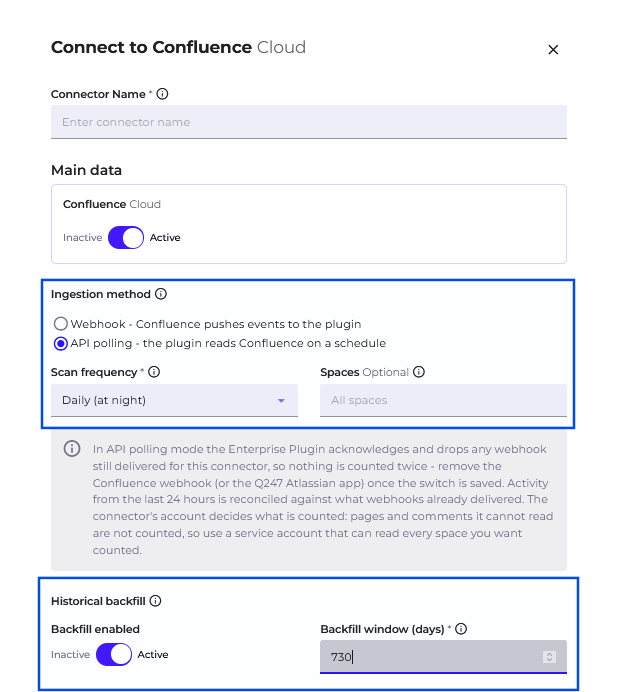
The upper frame in the screenshot covers the API mode settings, and the lower one covers the "Historical backfill" block, described in the Historical data backfill section.
| Field | What it does |
|---|---|
| Scan frequency | Daily (at night) or Hourly. Daily mode runs at night, according to the plugin host's time, and does not load Confluence during working hours. Hourly mode gives fresher data at the cost of hourly API traffic to Confluence. The field is visible only in API mode |
| Spaces | Confluence space keys to poll, separated by commas, for example ENG, DOCS. An empty field, with the hint All spaces, means all spaces the connector account can read |
Saving the list of spaces replaces the previous list entirely.
The "Spaces" field determines which spaces the plugin polls and backfills. Which Q247 project a given space belongs to is set separately, in the source assignment.
What is counted is decided by the connector account: pages and comments that this account cannot read are not counted. For API mode, use a service account with read permission on all spaces that are meant to be counted.
Each comment is fetched and counted once, with its creation date. A later edit of a comment is not counted again. The content of blog posts is not included in the calculations.
API mode uses the same credentials as the webhook, described in step 1. In the On-Premise variant, a personal access token entered in the "API Token / Password" field is sufficient on its own, and a password is provided together with the "API Username" field.
The form does not let you save the connector without the instance address or without a token. The message points to the missing field: in the On-Premise variant Please provide Confluence Base URL or Please provide API Token / Password, in the Cloud variant Please provide Atlassian Site URL or Please provide API Token.
Switching from webhooks to API mode
When you switch, the activity from the last 24 hours is reconciled with what the webhooks have already delivered.
After saving the change, delete the webhook in the Confluence instance (On-Premise) or, if it was used, the Q247 app from the Confluence app list (Cloud), that is, the entry configured in step 2a. The plugin accepts and discards webhooks that are still delivered for this connector, so those events are not counted a second time, but the webhook itself stays active unnecessarily.
API mode diagnostics
There is no separate screen for this mode. The Last data scan column in the Sources table shows N/A for Confluence sources in every mode, and the connector card in Configuration shows only whether the connector is enabled: Operational or Not working. Neither place signals polling errors.
A space from the list that the connector account cannot read, or that does not exist, is skipped and noted in the plugin log, while the remaining spaces are fetched normally. When none of the listed spaces can be read, the run ends with an error. If data from some spaces is missing, first check the keys on the list and the permissions of the connector account.
Historical data backfill
Q247 can backfill data from the period before the Confluence integration was started. The Enterprise Plugin fetches through the API the page version history and comments, which feed Calories in the Documentation type.
Backfill settings
The backfill is set in the "Historical backfill" block of the connector form, visible in the lower frame of the screenshot.
The block has two fields:
| Field | What it does |
|---|---|
| Backfill enabled | the backfill switch, off by default. When on, historical activity within the window is loaded once and added to past periods in Calories. When off, the connector collects only new activity from now on |
| Backfill window (days) | the number of days back that the backfill covers, a whole number from 1 to 7300. The field suggests 730 days, that is two years, and is inactive while the switch is off |
The backfill covers page versions changed within the window, including on pages created earlier, and comments added within the window. Blog post versions are not backfilled.
The range of spaces is determined by the same list as in API mode: the "Spaces" field, and when it is empty, all spaces the connector account can read. Pages the account has no access to are not counted.
Backfill works in both ingestion methods. The run takes place at night, according to the plugin host's time. A later increase of the window starts a one-off run for the added range only. Reducing the window or switching the backfill off does not remove data that has already been backfilled.
Besides setting the window, two more things are needed: the feature must be made available to the organization, and the Enterprise Plugin must be version q247-enterprise-plugin-linux-v2.6.3 or later.
Backfilled data in Calories
Backfilled page versions and comments go into Calories with their creation date, so they feed periods before the integration was started. Neither the Last data scan column nor the connector status shows backfill runs, as in API mode. A space from the list that the connector account cannot read is skipped on the same basis as in API mode.
The "Hide increments above" threshold applies to all Confluence data, including backfilled data.
Step-by-step setup
1. Creating the connector in Q247
In Configuration, in the Documentation section, next to the Confluence entry, the "+" button by the Connectors list opens a two-step form. In the same form you choose the ingestion method.
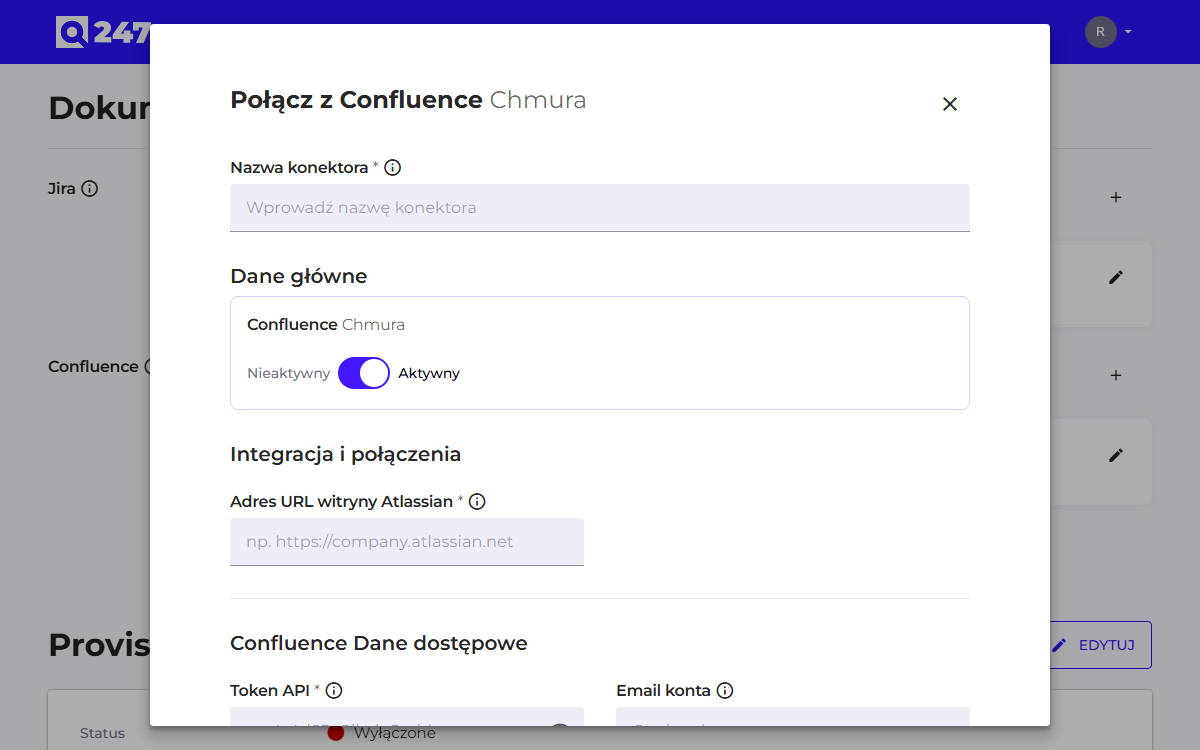
The Cloud variant requires a site address and credentials:
| Field | What it does | Example |
|---|---|---|
| Connector Name | your own name to recognize it in the list | Confluence firmowy |
| Atlassian Site URL | the base address of the site in Atlassian Cloud | https://firma.atlassian.net |
| API Token | the service account credential, the same one used for Jira | ATATT3xFfGF0... or $$ATLASSIAN_TOKEN |
| Account Email | the address of the account the token was generated on | q247-service@company.com or $$ATLASSIAN_USER |
Both credential fields accept an environment variable name with the $$ prefix instead of the value itself, the same as in Jira. If the Jira connector already uses this, you can point at the same variables here, because the token in Atlassian Cloud is shared between both products.
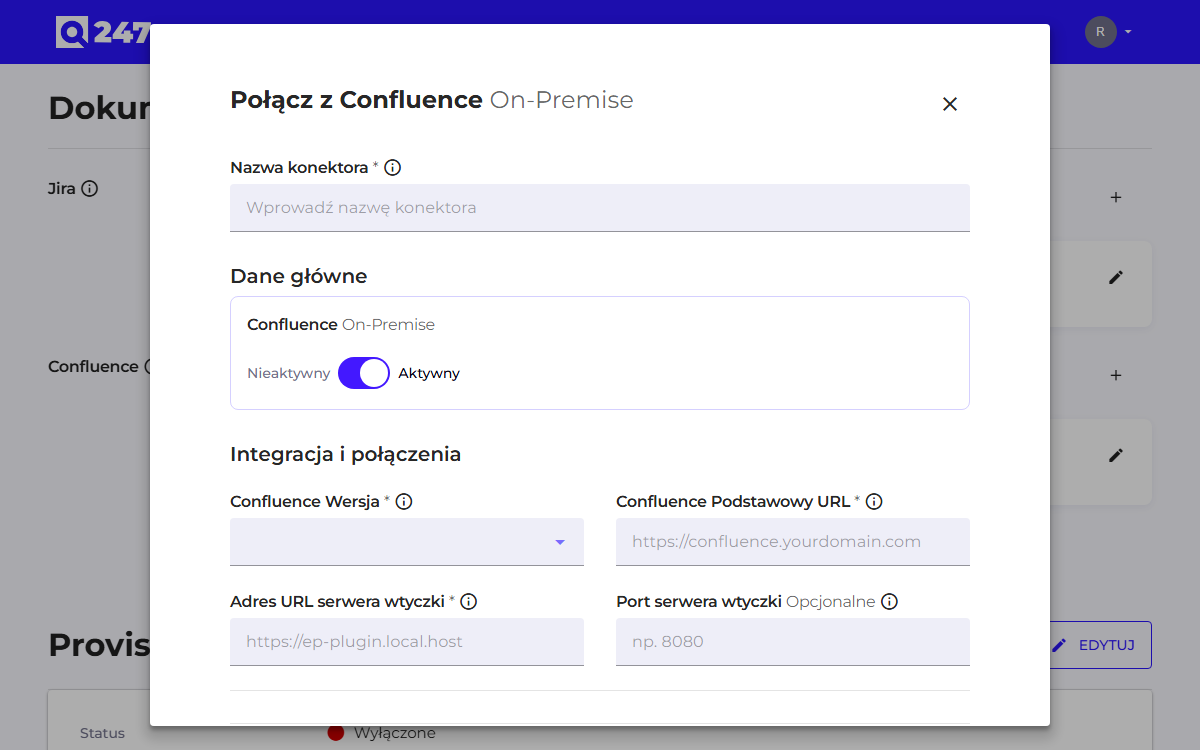
Instead of a site address, the On-Premise variant asks for the instance version and two addresses:
| Field | What it does | Example |
|---|---|---|
| Confluence Version | the instance version, picked from a list | 8.5.6 |
| Confluence Base URL | the address of the Confluence instance | https://wiki.company.com |
| Plugin server URL | the address at which Confluence will see the plugin | https://ep-plugin.company.com |
| Plugin server Port | the port on which the plugin is actually listening, usually the HTTPS port | 8443 |
| API Token / Password | the service account credential: a personal access token or a password provided together with the API username | a personal access token of the service account |
| API Username | the service account login, optional | leave empty with token authentication |
You can check the instance version in Confluence: the gear icon, then General Configuration, then Administration → System Information. A name with a number is displayed, for example "Confluence 8.5.6".
The plugin server address and port fields appear only in webhook mode. The Plugin server URL field works the same way as in Jira and is subject to the same caveat: it only serves to build the webhook address you copy and paste, and Q247 itself never connects to that address.
Steps 2a and 2b apply only to webhook mode. In API polling mode they are unnecessary, and after saving the form you can go straight to step 3.
2a. Cloud variant: connecting the app with the organization
The second step of the form shows the EP Connect API Key field with a "Copy Key" button.
Confluence has its own entry on the Manage apps list, independent of the Jira entry, and a differently named field:
- In Confluence go to the list of installed apps and find Q247.
- Choose Configure.
- Paste the key into the Connect with your existing Q247 account field.
Installing the app itself, if it is not there yet, is described on the Jira page. The same installation link serves both products, and each one is configured separately.
2b. On-Premise variant: webhook in the Confluence instance
The second step of the form shows the EP Webhook URL field with a "Copy URL" button. That address contains a random key belonging to your organization, so handle it like a password.
Registration on the Confluence side:
- The gear icon, then General Configuration.
- In the left panel Settings → Webhooks.
- The Create a WebHook button.
- Fill in the Name field and paste the address into the URL field.
- In the Events section select page created, page updated and comment created.
- Click Test connection. This is the only built-in check on the Atlassian side, and it is worth using before you save.
- Click Save.
The On-Premise connector wizard names the other Atlassian product in its instructions, so it points at the Jira instance. This is the same message error described on the Jira page.
3. Assigning the source to a project
In Sources the "Add Sources" button lets you add a source of the Confluence type, giving the space key and the Q247 project it should belong to. Alternatively you can do this from the project level, through "Assign Source".
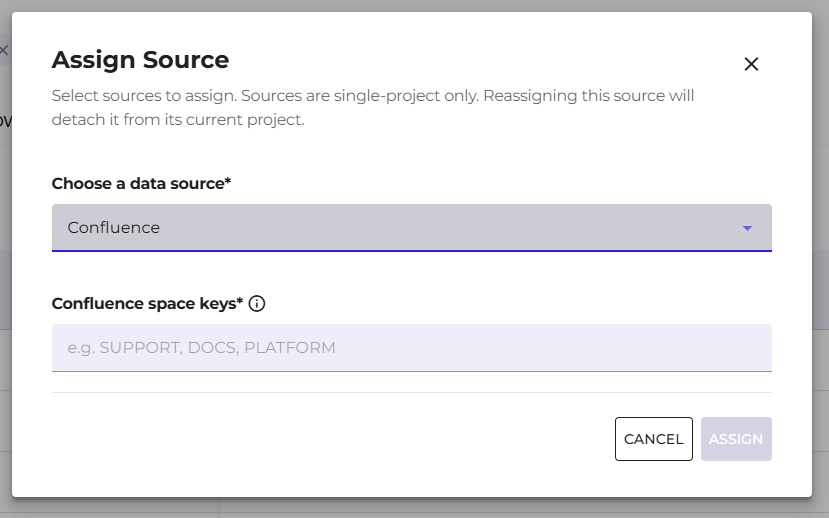
One space belongs to one Q247 project. When the documentation of one product is spread across several spaces, enter all their keys in a single form, separated by commas, for example SUPPORT, DOCS, PLATFORM.
The assignment form and the other source types are described in the Sources tab in the project details.
Verification and diagnostics
The connector statuses and the checking order when data is missing are the same as for Jira, with two differences. The signals specific to API polling mode are described in a separate subsection.
The first difference applies to webhook mode: the connection test button in the Confluence On-Premise webhook form tells you right away whether the instance can reach the plugin at all. This rules out part of the possible causes before you start looking further.
The second: when pages are processed but the contribution does not appear next to the right people, check the email address visibility option described in the prerequisites. This symptom does not look like an integration problem, because the integration is formally working.
Scope of processed data
The page content and its change history are analyzed locally by the plugin. What reaches Q247 is the calorie score and the event metadata, including the page identifier, the space key, the URL, the author's name and email address, the event type (page version or comment), the event time, the list of changed fields, a numerical summary of the changes and the address of the Confluence instance entered in the connector form.
When the last 24 hours are reconciled after switching to API mode, and during historical data backfill, the plugin additionally passes on the author's Confluence account identifier and their aliases. In the On-Premise variant, the aliases may include the placeholder address described in the prerequisites.
Q247 recognizes the link between a page and a ticket by searching for the ticket identifier in the page content, title and version description. The recognized identifier is passed on to Q247, so a fragment of the page content reaches the backend if it contains a reference to a ticket. Outside this case, the content of pages and comments does not leave the infrastructure the plugin runs in.
The scope of data exchange with the plugin is described more broadly in Enterprise Plugin security.
See also
- Jira: tokens, network traffic and diagnostics described in detail
- Sources: assigning a space to a Q247 project
- Enterprise Plugin installation: enabling the Confluence add-on
- Enterprise Plugin security: the scope of data exchange