Connectors
A connector is a single connection to one version control system: one GitLab server, one GitHub organization, one Bitbucket instance. Each connector belongs to a specific Plugin, that is a deployment of the Enterprise Plugin, that actually scans the repositories.
Every Q247 deployment starts with connectors, because without them the platform has no source of commits, and therefore nothing to calculate Calories, Increments or Lines from.
How it works
The plugin connects to the version control system API, fetches the list of available repositories and clones them locally. The analysis of the code and history takes place entirely on the plugin side. Only the result is sent to Q247.
The path from saving the connector to data on the dashboard has four stages, and each of them takes time:
- Repository discovery. The plugin queries the API and reports the found repositories to Q247. This takes 5 to 10 minutes.
- Assignment to a project. A manual step, without it scanning does not start.
- First scan. Analysis of the entire repository history, from a dozen or so minutes upward, depending on size.
- Activating people. A manual step, described in Running the integration. Without it dashboards stay empty.
Scope of processed data
The source code and the full repository history are cloned and analyzed locally, on the plugin side. They do not leave the infrastructure the plugin runs in: in a standard installation this is the Client's infrastructure (Private Plugin), and in the Cloud Plugin variant it is Q247's infrastructure. The access token also stays on the plugin side, with one exception: in the Generic GIT connector the credentials are part of the repository address, so they reach Q247 together with it.
Only the result of the analysis reaches Q247: the repository address, committer data, the calculated effort vector and calorie score, the model version, and the repository metadata, that is name, address, group and status.
The full technical specification, together with the list of stored fields, is in Enterprise Plugin security.
Prerequisites
Service account and token
Authentication uses a personal access token generated on an account that has access to all repositories intended for analysis. This is the most common cause of incomplete results: the connector works, but discovers only part of the repositories, because the service account does not belong to all the groups.
The token needs read-only permissions. In GitLab these correspond to the read_user, read_api and read_repository scopes; in the other systems, their equivalents.
Q247 never writes anything to the repository. A token with a broader scope than read-only gives no additional function, and it increases the impact of a possible leak.
Credentials from environment variables
Credentials do not have to be typed directly into the form. Instead of the value you can give the name of an environment variable with the $$ prefix, and the plugin reads it only at the moment it connects to the system.
This works for both fields, the username and the token, independently of each other. So you can give the login explicitly and the token from a variable, or both from variables.
| Form field | Value in the form | Variable on the plugin host |
|---|---|---|
| Username | $$GITLAB_USER | GITLAB_USER=q247-service |
| Personal Access Token (PAT) | $$GITLAB_TOKEN | GITLAB_TOKEN=glpat-xxxxxxxx |
The prefix is exactly two dollar signs, followed by the variable name itself, without brackets and without spaces. Writing $GITLAB_TOKEN or ${GITLAB_TOKEN} will not be recognized and will be sent to the system as a literal string.
In that case only the variable name is stored in the Q247 database, not the value itself. The credential stays on the Client's server and does not pass through the form in the browser or through the Q247 backend. Rotating the token then comes down to replacing the variable on the host and restarting the plugin, without going into the panel.
This means the machine the plugin runs on. With Cloud Plugin this is the environment on the Q247 side, so setting the variable requires the involvement of the deployment team; with the plugin running at the Client, the variable is set by its infrastructure team.
An unset variable produces no validation error on save. The credential resolves to an empty value and only shows up as failed authentication on the first connection attempt, that is a Failed status on the connector.
The mechanism works in every connector that has username and token fields, that is all of them except Generic GIT, where the credentials are part of the repository URL. It is also supported by the Jira and Confluence integrations, together with the separate Tempo token.
Network access
The plugin has to reach the version control system API and the Q247 backend. Both connections are outgoing. For repositories added manually in Generic GIT, access has to be public or open for the IP address the given plugin runs from.
Adding a connector
In Configuration, in the Plugins section, next to the "Connectors" list of the selected deployment, the "+" button shows the list of available types.
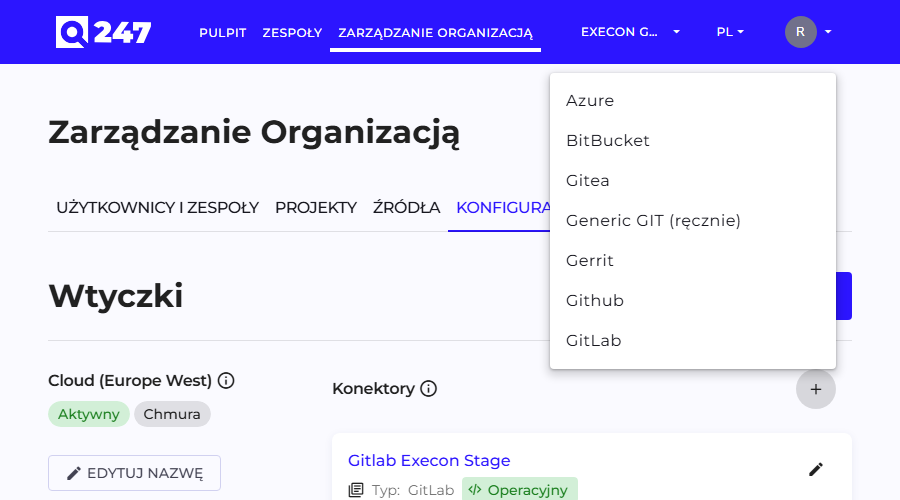
Six of the seven types have an identical form. The exception is Generic GIT, which does not connect through an API.
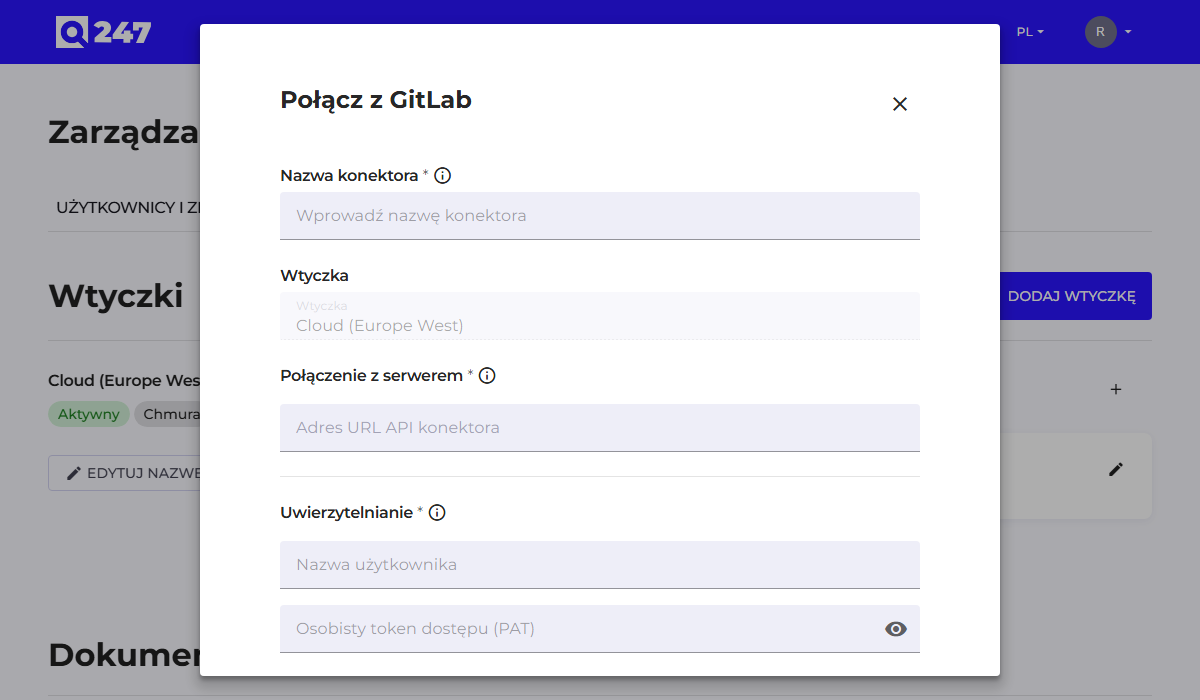
| Field | What it does | Example |
|---|---|---|
| Connector Name | your own name to recognize it in the list | GitLab firmowy |
| Plugin | the deployment that is to handle this connector | Cloud (Europe) |
| Connector API URL | the address of the version control system API | https://gitlab.company.com/api/v4 |
| Username | the login of the account the token was generated on | q247-service |
| Personal Access Token (PAT) | the service account credential | glpat-xxxxxxxx or $$GITLAB_TOKEN |
| Organization ID | the organization identifier, only for some types | firma |
The API address is built differently for each system, and this is the most common place for a mistake:
| System | Connector API URL |
|---|---|
| GitLab | https://{host}:{port}/api/v4, for example https://gitlab.company.com/api/v4 |
| GitHub | the API address of the instance, a default value for github.com |
| Azure DevOps | https://dev.azure.com |
| Bitbucket, Gitea, Gerrit | the API address of the given instance |
The Organization ID field does not appear in all types: for Azure DevOps it is required, for GitHub optional, and in the remaining types it is not there at all.
The save button closes the form and starts repository discovery.
Verification and diagnostics
The Status column in the connector list takes one of six values:
| Status | Meaning |
|---|---|
| New | the connector is saved, the plugin has not picked it up yet |
| Pending | the first connection to the version control system is in progress |
| Ready | the connection is established, repositories not yet processed |
| Operational | the connector works and delivers data |
| Failed | the last connection attempt did not succeed |
| Archived | the connector is withdrawn from use, historical data stays |
A Pending status lasting longer than a dozen or so minutes means a problem with the connection or the token.
When repositories do not appear in Sources, check in this order:
- Whether 5 to 10 minutes have passed and whether you refreshed the page. The list does not update on its own.
- Whether the API address is correct, including the suffix proper to the given system. The address of the instance alone, without the API suffix, gives a Failed status.
- Whether the token has not expired and whether it has read scopes.
- Whether the service account belongs to all the groups whose repositories are to be analyzed. The symptom is an incomplete, not an empty, list.
- The plugin logs (
q247-plugin.log), which show the API responses and sending errors.
When repositories are visible but dashboards stay empty, the cause almost always lies in one of the two steps described in Running the integration: missing assignment to a project or missing activation of people.
Seven connector types
 GitLab
GitLab connector, supported from version 14, self-hosted server or gitlab.com.
 GitHub
GitHub connector for github.com and GitHub Enterprise, with an optional Organization ID field.
 Azure DevOps
Azure DevOps connector, the only type with a mandatory Organization ID field.
 BitBucket
BitBucket connector for Cloud and Data Center, requiring read access to projects and repositories.
 Gitea
Gitea
Gitea connector, a lightweight alternative to GitLab and GitHub.
 Gerrit
Gerrit connector, a code review system with built-in version control.
 Generic GIT
The only connector without an API, repositories added manually, with login credentials in the URL.
See also
- Running code analysis: the full sequence of steps from the connector to data on the dashboard
- Enterprise Plugin: Cloud Plugin and Private Plugin, system requirements
- Sources: the list of discovered repositories and assigning them to projects
- Enterprise Plugin security: the full scope of data exchange and firewall rules