Calories Type
The Calories Type selector switches which activity Calories, Increments and Lines and the indicators that depend on them (Work Dynamics Indexes, Retention, Flow Metrics) are calculated from. It appears on all Dashboards views. In the interface itself, this selector has no group label of its own; only the three options to choose from are visible. "Calories Type" is a descriptive name used in this documentation, not a literal string from the application.
Options
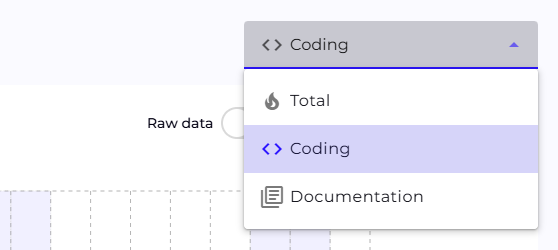
- Total: all kinds of increments together: commits, Jira tickets, Confluence pages, Azure Boards work items and Azure Wiki pages.
- Coding: only increments related to writing code, meaning commits in a repository.
- Documentation: only increments related to documentation: Jira tickets, Confluence pages, Azure Boards work items and Azure Wiki pages.
The definitions of the metrics stay the same; what changes is the set of increments they are calculated from. Two numbers are therefore comparable only when they were produced with the same selector setting, and a screenshot or a number copied into a report should have a note of which setting it was collected under.
The effect is most visible for a person who mainly works in Jira and Confluence: in the "Coding" option their Effort and Output level drop close to zero, even though nothing has changed in their work. A team review carried out only in the "Coding" option will show such people as inactive, and one carried out in "Documentation" will do the same to a developer who commits code and does not work with tickets.
Scope and how the choice is remembered
The choice is stored locally in the browser, but its scope differs depending on the view:
- Overview, Teams, Team: the setting applies only to that one page. A change on Overview does not affect what is selected on Teams or on a specific Team page.
- Project: one setting, shared across all projects. A change on one project carries over to every other one you visit.
- Participant: similarly, one setting shared across all participants.
These are two separate storage entries: a change on the Project page does not affect what is selected on the Participant page, and vice versa.