License
The "License" section opens the Configuration tab in the Manage Organization panel. It shows the parameters of the organization's license and the number of accounts that occupy a seat in it.
Only accounts with the organizational Admin role, described in Permissions, can see the section.
The license key is issued by Q247 support, and in this section an administrator can only paste it. The new limits apply immediately after saving.
License details
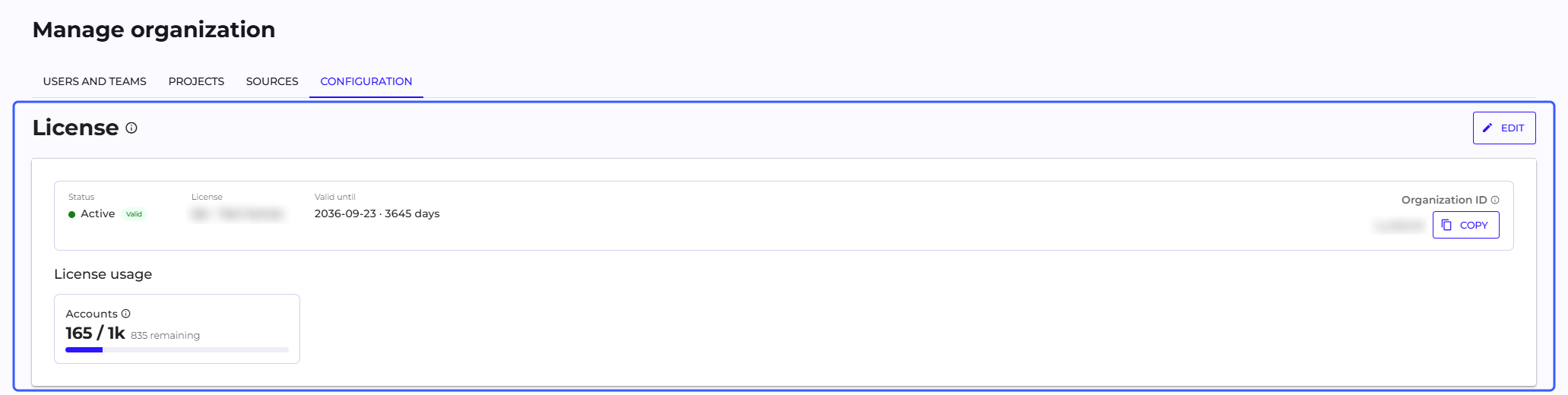
Below the section header there is a bar with four fields.
| Field | Content |
|---|---|
| Status | the license state: Active with a "Valid" marker, Grace period or Expired |
| License | the license name |
| Valid until | the last day the license is valid, in the YYYY-MM-DD format, in UTC time: the license applies until the end of that day. Until that date passes, the number of days remaining is shown next to it, for example "· 30 days". A perpetual license shows "No expiry date" here |
| Organization ID | the organization identifier in Q247 with a Copy button |
In the Grace period and Expired states, a message with the license expiry date also appears above the bar.
The Copy button copies the Organization ID to the clipboard and confirms it with the message "Organization ID copied to clipboard". Give this identifier to Q247 support in every license-related case. A field with the same name in the connector form holds a different value: the organization identifier in the version control system.
License usage
Below the details bar there is a "License usage" panel with one tile, Accounts. The tile compares the number of accounts occupying a seat in the license with the limit, in the form used / limit. Numbers from 1000 up are shortened, so a limit of 1000 accounts is displayed as 1k.
Below the number there is a progress bar with a caption that depends on the number of free seats:
| Caption | Free seats | Bar color |
|---|---|---|
{n} remaining | three or more | standard |
Approaching · {n} left | one or two | amber |
| "Limit reached" | zero: the number of accounts equals the limit or exceeds it | red |
The limit counts accounts in both variants of the Active status: Active (access) and Active (no access). The counter does not take into account whether the account can log in, so switching an account from one variant to the other does not change the number of occupied seats. Aliases and accounts with the Untracked status (for example technical accounts and bots), Inactive and Other do not occupy a seat in the license. Account statuses and how to change them are described on the Users And Teams page.
Replacing the license key
-
Click Copy next to the Organization ID and pass the identifier to Q247 support. A license key is issued for a specific organization.
-
After you receive the key, click Edit (the pencil icon) in the section header. The "New license" editor opens, with a "Current" line giving the name and expiry date of the current license, and with a hint above the field.
-
Paste only the key string into the License key field, starting with
Q247LIC1. Spaces and line breaks do not matter. When the key arrived as a.licfile, paste its contents, because the file contains exactly this string.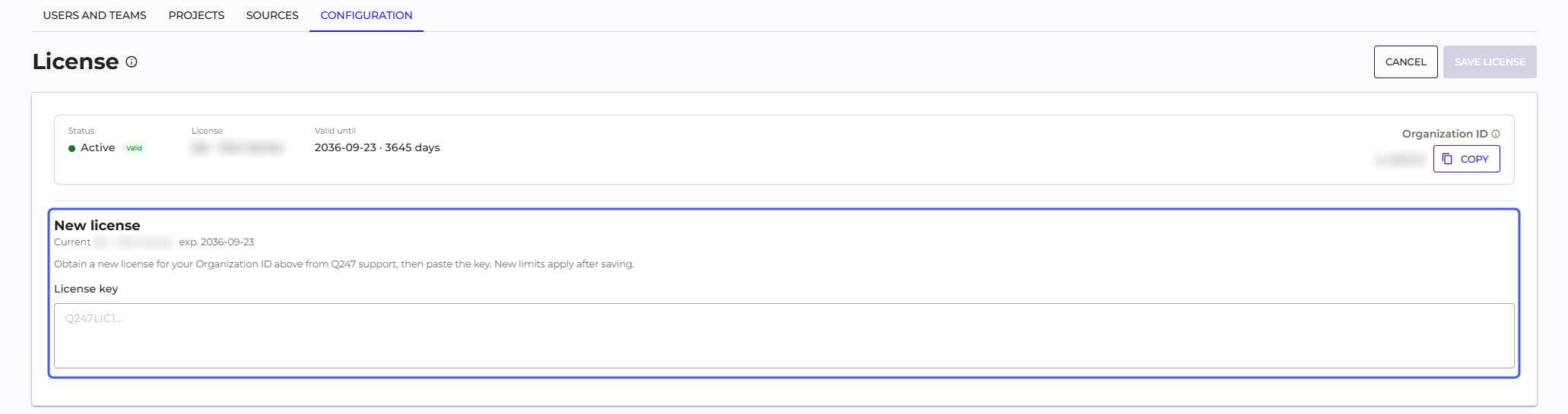
-
Click Save license or press Ctrl+Enter. The button is disabled while the field is empty. Cancel closes the editor without changes.
The section accepts the key only as text pasted into the field, without a file upload.
After a successful save, the message "License saved" appears, and the parameters and limit from the new key apply immediately.
When saving fails, the message "The license is invalid. Please contact support and provide your organization ID" appears, with the organization identifier at the end. The previous license then stays unchanged.
The message reads the same regardless of the cause. For example, a key issued for another organization, a license whose expiry date has already passed, or a key truncated during copying is rejected. The same text also appears when the connection to the server is interrupted, so retry the save before you report the case to Q247 support.
Organization without a license
When the organization has no license installed, the section shows the Organization ID with a Copy button, the text "No license configured" and an Add license button. The Edit button is not there in this state, and the "License usage" panel does not appear.
Add license opens the same License key field as editing. Obtaining and saving the key work the same way as in replacing the key.
See also
- Configuration: the other sections of the tab
- Users And Teams: account statuses, including both variants of the Active status
- Running code analysis: assigning statuses to contributor accounts at the start of rollout
- Permissions: the Admin role and access to the Configuration tab